How to generate animated pixel art with AI and Python
How I built a pixel-perfect animated hero section using Midjourney, a custom Python processing pipeline, and Astro View Transitions.
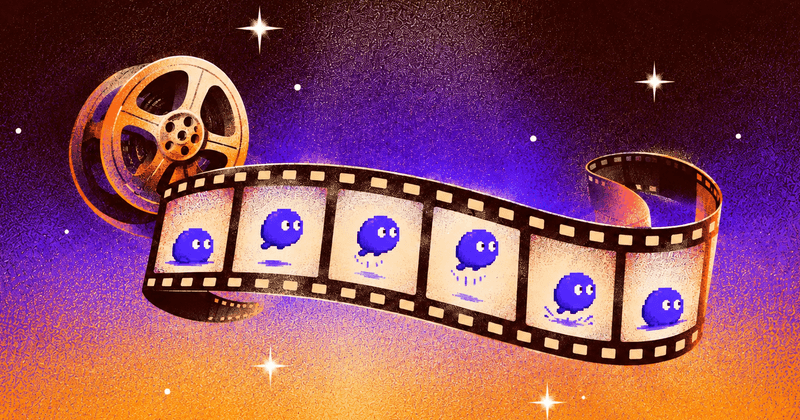
I recently decided to overhaul my site’s hero section. I wanted something that felt personal and retro—specifically, an animated pixel art profile.
The easy way would be to find a GIF and slap it in an <img> tag. But GIFs are bulky, hard to control, and don’t scale well without artifacts. I wanted full control over the frame rate, the color palette, and the rendering sharpness.
So I built a pipeline that takes an AI-generated video, processes it with Python into an optimized sprite sheet, which is then rendered inside Astro with a canvas element.
The Pipeline
The workflow looks like this:
- Creation: Text-to-Image (ChatGPT) → Polish (Photoshop) → Animation (Midjourney).
- Processing: Python script to extract frames, quantize colors, and fix jitter.
- Rendering: HTML Canvas.
Step 0: How to generate the video
Getting consistent pixel art from AI is harder than it looks. Most models try to add “detail” that ruins the 8-bit aesthetic, or they hallucinate a grid that doesn’t align.
I started with ChatGPT to get the base composition. It took a bit of prompt engineering to force it into a strict low-res style.
First attempt (with an image of myself for reference):
Please generate an image in the style of Retro 8-bit pixel art; pixel avatar; indie 2d game character art; bright orange flat background; for the given reference photograph. The image should be 1:1 aspect ratio.

Edit (with the same reference image and the failed attempt):
Try again; but enlarge the pixel blocks, and make the image flatter; make the background yellow
Creating static pixel art with ChatGPT
The raw result was decent but messy. The pixels weren’t uniform, and the edges were fuzzy. I pulled it into Photoshop to clean up the artifacts and enforce a strict pixel grid.
Once the static base was solid, I used Midjourney for the animation.
Animate this pixel art with a slight head tilt and smile.Step 1: The Python Processing Script
Midjourney creates great animations, but it outputs MP4s. MP4s are full of compression artifacts and “noise” that ruin the crisp pixel-art look.
To fix this, I wrote a Python script create_sprite_sheet.py. It doesn’t just extract frames; it enforces a strict color palette and smooths out temporal jitter.
Color Quantization
To get that authentic retro look, you can’t have thousands of slightly different colors. I force the image down to a specific palette size (24 colors).
# Quantize combined image to get shared palette
combined_quantized = combined.quantize(
    colors=PALETTE_SIZE, dither=Image.Dither.NONE
)

# Apply unified palette to each frame
for img in raw_frames:
    img_p = img.quantize(
        colors=PALETTE_SIZE,
        dither=Image.Dither.NONE,
        palette=combined_quantized,
    )
Temporal Smoothing
The biggest issue with AI video is flicker. Pixels that should be static tend to dance around. So I created a mask that detects “static” regions—pixels that don’t change much between frames—and locks them to a single color across the entire animation loop.
# Detect static regions
static_mask = np.ones((h, w), dtype=bool)
for i in range(num_frames - 1):
    diff = np.abs(frame_stack[i] - frame_stack[i + 1])
    static_mask &= np.max(diff, axis=2) < CHANGE_THRESHOLD

# Apply mode color to static regions to stop flickering
for y in range(h):
    for x in range(w):
        if static_mask[y, x]:
            pixel_stack = frame_stack[:, y, x, :]
            smoothed_stack[:, y, x, :] = get_mode_color(pixel_stack)
The result is a sprite sheet that looks hand-drawn, not AI generated, and it weighs just 46KB, compared to the original 1.18MB midjourney video.
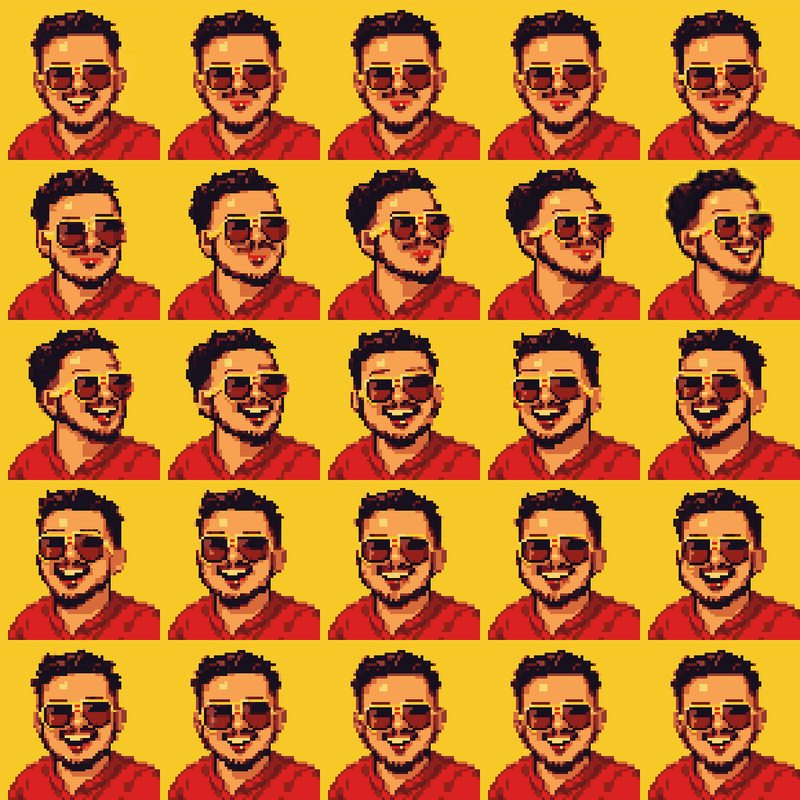
The final sprite sheet
Step 2: Rendering with Canvas
Displaying the sprite sheet is done via an HTML Canvas element. This gives me two advantages:
- Crisp Rendering: I can set
imageSmoothingEnabled = falseand CSSimage-rendering: pixelated. - Performance: I use
requestAnimationFrameto control the loop, which is much more efficient than a DOM-heavy solution.
The drawing logic is straightforward:
// Calculate grid position
const col = frameIndex % cols;
const row = Math.floor(frameIndex / cols);

// Draw specific frame from sprite sheet
ctx.drawImage(
  spriteImage,
  col * 62,
  row * 62,
  62,
  62, // Source x, y, w, h
  0,
  0,
  canvas.width,
  canvas.height, // Dest x, y, w, h
);
The Result
The final output is a 5x5 sprite sheet, optimized to indexed color mode, weighing in at just 46KB. It renders sharply on high-DPI screens and animates smoothly at 10 FPS.
It was definitely the hard way to put a picture on a website, but the level of control it offers is worth it.