Building a Smooth Pixelation Reveal Effect with Canvas
How I built a high-performance, interactive pixelation effect for image transitions using HTML5 Canvas and custom easing interactions.
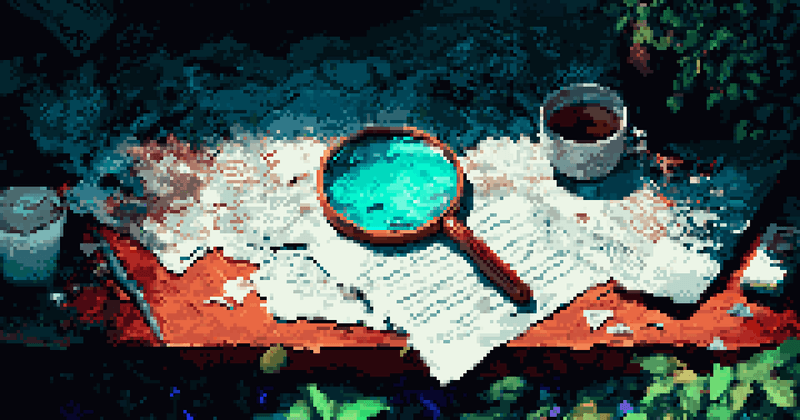
I wanted to add a specific interaction to my blog cards: images that start as a retro, blocky mess and snap into high-fidelity focus when you hover over them.
CSS backdrop-filter or image-rendering properties can get close, but they lack the granular control needed for a smooth transition animation.
Here is how I built a performant, framework-agnostic pixelation effect.
The Concept
The logic behind pixelation is surprisingly simple. You don’t need complex shaders or WebGL. You just need to abuse the drawImage method.
- Shrink it: Draw the image onto a canvas at a tiny fraction of its size (e.g., 5% width).
- Enlarge it: Draw that tiny version back onto the full-size canvas.
- Important: Disable image smoothing.
When you scale an image up with smoothing disabled, the browser renders hard edges between the data points (Nearest Neighbor interpolation), creating the perfect pixelated look.
The Implementation
I wrapped the logic in a TypeScript class to handle state, events, and the animation loop.
The Draw Loop
The core algorithm calculates a pixelFactor based on the current animation progress.
// 1. Turn off smoothing to get that blocky look
this.ctx.imageSmoothingEnabled = false;

// 2. Calculate the 'tiny' dimensions based on the pixelation level
// level = 1.0 (full quality) -> 0.01 (giant pixels)
const w = Math.floor(this.width * level);
const h = Math.floor(this.height * level);

// 3. Draw down to the tiny size (offscreen or just logic)
this.ctx.drawImage(this.img, 0, 0, w, h);

// 4. Draw back up to full size
this.ctx.drawImage(
  this.canvas, // Source is the canvas itself (containing the tiny image)
  0,
  0,
  w,
  h, // Source rect
  0,
  0,
  this.width,
  this.height // Dest rect
);
Adding Physics (Easing)
Linear animations feel robotic. To make the reveal feel satisfying, I used a custom easing function. The goal is to spend more time in the “semi-pixelated” state and snap quickly into full focus at the end.
I track a progress variable from 0 to 1. When the user hovers, I animate progress to 1. When they leave, I animate it back to 0.
// Cubic ease-in-out for that snappy feel
function easeInOut(p: number) {
  return p < 0.5 ? 4 * p * p * p : 1 - Math.pow(-2 * p + 2, 3) / 2;
}

// In the animation loop:
const eased = easeInOut(this.progress);
const pixelFactor = 1 + (MAX_PIXEL_SIZE - 1) * (1 - eased);
const level = 1 / pixelFactor;

this.draw(level);
Handling High DPI Screens
One “gotcha” with Canvas is that it looks blurry on Retina/High-DPI displays by default. You have to manually account for window.devicePixelRatio.
I set the internal canvas dimensions (the buffer) to width * dpr, but style it with CSS to the original width.
const dpr = window.devicePixelRatio || 1;
this.canvas.width = rect.width * dpr;
this.canvas.height = rect.height * dpr;
this.ctx.scale(dpr, dpr);
Integrating with Astro (or React)
Since I’m using Astro, I wanted this to work without heavy framework overhead. I attach the effect to any container with a data-pixelate attribute.
The markup is simple:
<div class="pixelate-container" data-pixelate>
  <img src="/my-image.jpg" loading="eager" />
  <!-- Canvas gets injected here by JS -->
</div>
And the initialization script runs on page load. Because I’m using Astro’s View Transitions with client-side navigation, I have to make sure to clean up old instances or re-initialize on navigation.
document.addEventListener('astro:page-load', () => {
  const containers = document.querySelectorAll('[data-pixelate]');
  containers.forEach(container => new PixelateEffect(container));
});
Performance & Optimization
Canvas operations are generally fast, but doing them on hover for multiple cards simultaneously is a bit much.
1. Lazy Rendering: I only run the drawImage loop if the visual state actually changed. If the animation is idle (fully clear or fully pixelated), we stop the requestAnimationFrame loop.
2. Image Preloading: You can’t draw an image that hasn’t loaded. The class checks img.complete. If it’s false, it waits for the onload event before attempting to draw.
3. Offscreen Buffering: For the intermediate “tiny” image, using a separate offscreen canvas can sometimes be cleaner than drawing to the main canvas and overwriting it, though modern browsers are quite good at optimizing the draw-on-self pattern.
The Result
The result is a highly performant interaction that adds character without distracting from the content. It works smoothly at 60fps and gracefully degrades if the canvas fails (the original image is just CSS-hidden behind it).
Sometimes the native web APIs are still the best tool for the job.